Save with supporting files
Save with supporting files is a feature that enables saving of semantic models with additional supporting files that follow the source code format required for Git Integration in Microsoft Fabric. This feature ensures that your Tabular Editor models are fully compatible with Fabric's Git integration capabilities, allowing seamless version control and deployment workflows.
When you save a semantic model with supporting files, Tabular Editor creates a folder structure that includes all necessary metadata files required by Microsoft Fabric's Git integration. This allows you to use Fabric Git integration to synchronize your semantic models between Fabric workspaces and Git repositories.
Note
Saving with supporting files is only available when saving to .bim (TMSL) or when Save to Folder is set to TMDL as serialization mode.
File structure and model properties
When you save with supporting files, Tabular Editor creates a new folder in the save path using the following naming convention: Database Name.SemanticModel. The folder name is derived from the Name property of the Database object in the TOM Explorer, with the .SemanticModel suffix appended. This suffix is required by Microsoft Fabric to recognize the folder as a semantic model item.
The Database Name property is also synchronized to the displayName property in the .platform metadata file, which is used by Microsoft Fabric.
Tip
The Name property of the Database object in the TOM Explorer serves two purposes:
- Determines the folder name (with .SemanticModel suffix added)
- Sets the displayName in the .platform metadata file
The property Description is also synchronized to the .platform metadata file.
Files included
Every saved model includes these core files:
- .platform - Metadata about the item including its type, display name, and description. Also contains a logicalId property, an automatically generated cross-workspace identifier.
- definition.pbism - Overall definition and core settings of the semantic model.
The model file structure within the created folder depends on your serialization format:
| Format | Model storage |
|---|---|
| TMDL | definition folder containing TMDL files with the model metadata |
| TMSL (.bim) | model.bim file (automatically saved with a fixed filename) |
Example folder structure for a database named "Sales":
Sales.SemanticModel/
├── .platform
├── definition.pbism
├── model.bim                    (if saved as TMSL)
└── definition/                  (if saved as TMDL)
    ├── database.tmdl
    ├── tables.tmdl
    └── ...
How to save with supporting files
To save your model with supporting files:
- Create a new or open an existing semantic model in Tabular Editor 3
- Configure the model name - Set the
Nameproperty of the Database object in the TOM Explorer- This sets the folder name (with .SemanticModel suffix) and displayName in the .platform file
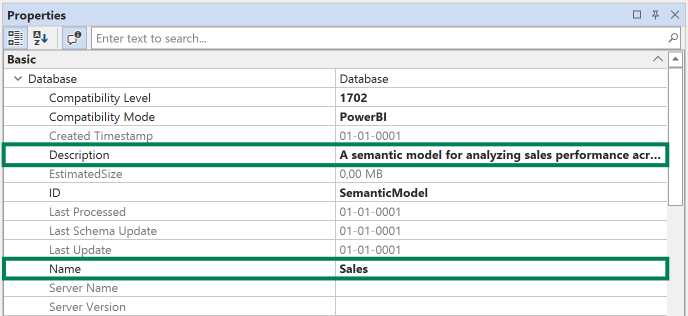
- This sets the folder name (with .SemanticModel suffix) and displayName in the .platform file
- Ensure your serialization mode is set to either TMDL or that you're saving as a .bim file
- Go to Tools > Preferences > File Formats to configure serialization settings
- Click on File > Save As or File > Save to Folder
- Choose a folder where you want to save your model
- Check the checkbox Save with supporting files

- Check the checkbox Save with supporting files
- Click Save
Tabular Editor will create a new folder using the Database name with a .SemanticModel suffix (e.g., Sales.SemanticModel) in the save location and populate it with all necessary files in the format compatible with Microsoft Fabric Git integration.
Git Integration in Microsoft Fabric
The Save with supporting files feature is designed to work seamlessly with Microsoft Fabric's Git integration capabilities. Git Integration is available on workspaces assigned to Microsoft Fabric F-SKU capacity, Power BI Premium capacity, or Power BI Premium Per User (PPU).
Warning
Git Integration for the Semantic Model item is currently in preview. For the latest information on supported items for Fabric Git Integration, see Supported items in Fabric Git Integration.
Caution
Do not enable Git integration on the Fabric workspace that you use to host your Tabular Editor workspace databases. Maintaining semantic models in both the hosted workspace and in repository files simultaneously while Git integration is enabled creates risks of uncommitted changes and conflicts. When a model is synchronized between Tabular Editor and the workspace, changes may not align properly with the Git repository state, resulting in out-of-sync uncommitted changes and potential Git conflicts.
Instead, use deployment workflows to deploy semantic models to workspaces via Tabular Editor, the Fabric REST APIs, Fabric CLI, or the fabric-cicd Python library. This ensures clean separation between your Git repository and workspace.
Using Git integration with Tabular Editor
When your semantic model is saved with supporting files and synchronized to your Git repository, you can then sync it to Microsoft Fabric using the following workflow:
- Save your model in Tabular Editor using the Save with supporting files option
- Commit the changes to your Git repository
- Connect your Fabric workspace to the Git repository
- Synchronize your model between Fabric and Git using the Update all button in the workspace source control pane
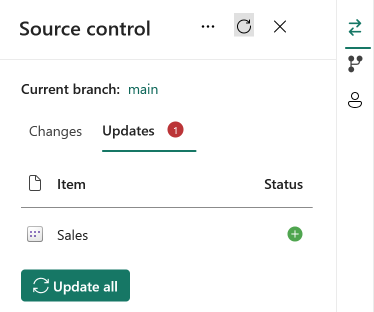
When your model is synchronized to Microsoft Fabric/Power BI, the semantic model name displayed in the workspace is based on the displayName property in the .platform file, which is automatically set from the Database Name property in Tabular Editor. This means the name you configure in Tabular Editor will be the name displayed in Fabric/Power BI.
Tabular Editor automatically sets the model culture to en-US when saving with supporting files. This ensures the model culture is present when synchronizing with Fabric, preventing uncommitted changes that can occur if the culture is not set during the initial synchronization.
For more information, see:
Comparing serialization formats
When using Save with supporting files, you can choose between two serialization formats:
TMDL (Tabular Model Definition Language)
- Human-readable text format
- Easier to review changes in Git diffs
- Better for code reviews and collaboration
- Learn more: TMDL documentation
TMSL/JSON (.bim)
- JSON-based format
- Single file representation
- Compatible with older tools and workflows
Both formats are supported by Microsoft Fabric Git integration, and the choice depends on your team's preferences and workflow requirements.