Application Language
Tabular Editor 3 supports multiple UI languages. You can switch between them at any time.
Note
Tabular Editor 3 is still not fully localized. Specifically we have so far not localized the individual TOM properties.
Supported Languages
| Language | Status |
|---|---|
| English | Fully supported |
| Spanish | Preview |
| Chinese | Preview |
| French | Beta |
| German | Beta |
| Japanese | Beta |
Note
Preview languages have core UI elements translated but may have incomplete coverage. Beta languages are experimental and may have significant gaps or inconsistencies. Report issues on GitHub.
Preview Languages
The languages under Beta support means that they have been verified by an human translator, but that Tabular Editor 3 may still not be fully localized. Specifically we have so far not localized the individual TOM properties.
Beta Languages
Beta languages are have been translated exclusively through AI and as not been verified by human translators. We plan to bring beta languages into Preview in Q2 2026.
Changing the Language
There are two ways to change the application language:
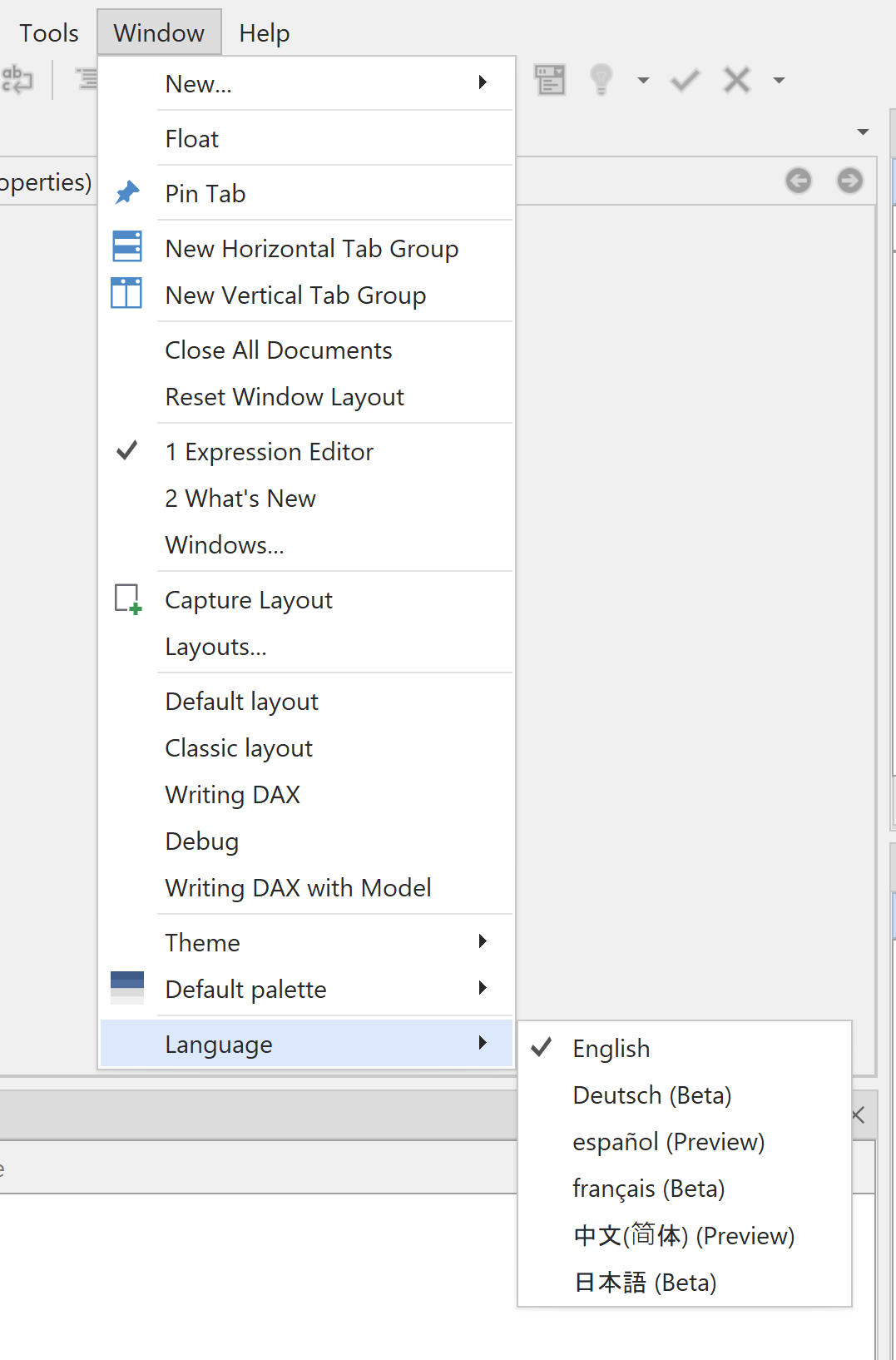
Via Window Menu
- Click Window > Language
- Select your desired language
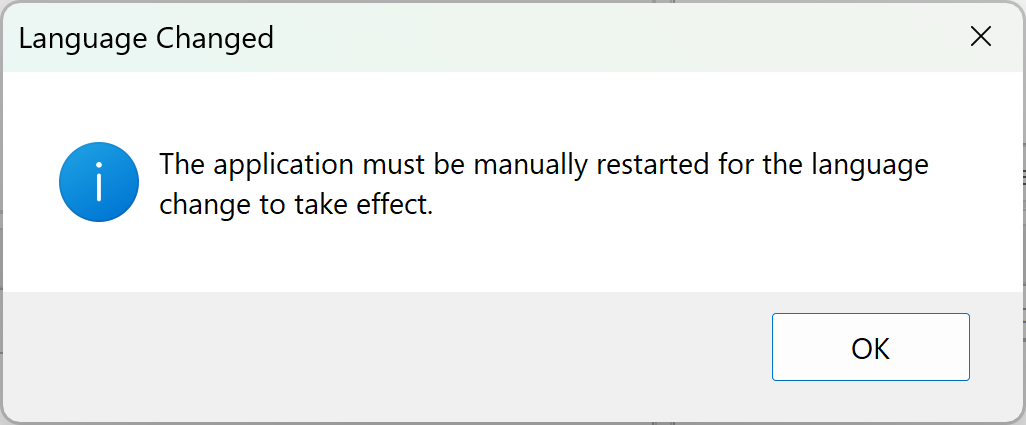
- Click OK when prompted to restart
- Restart Tabular Editor 3 manually
Change Language via Window Menu
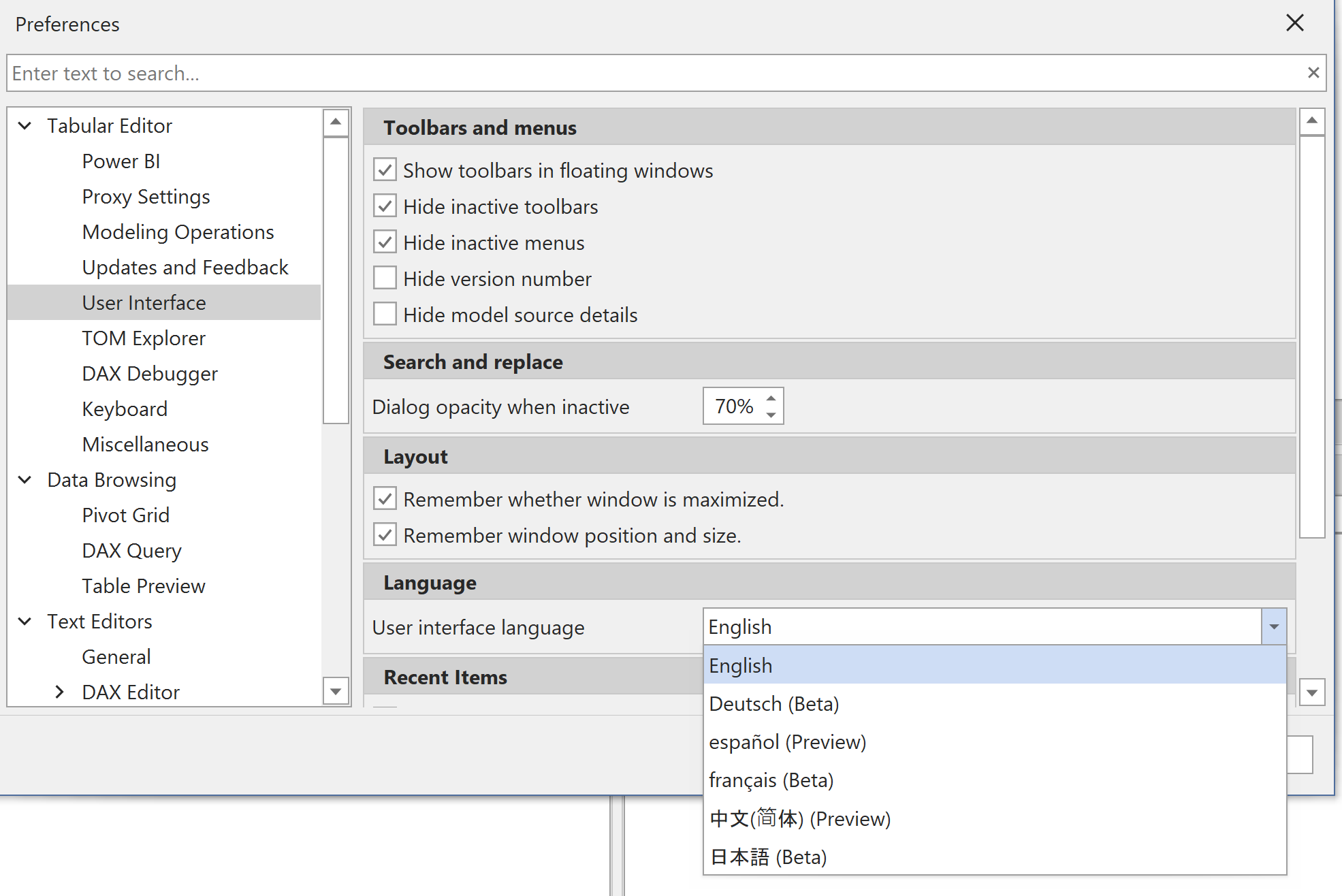
Via Preferences
- Click Tools > Preferences
- Navigate to UI section
- Select your desired language from the Language dropdown
- Click OK when prompted to restart
- Restart Tabular Editor 3 manually
Change Language via Window Menu
Restart Requirement
You must restart Tabular Editor 3 for language changes to take effect. The application prompts you to restart but does not restart automatically. Save your work before changing the language.
Change Language via Window Menu
Installation Language
During installation, the installer prompts you to select a language (English, Spanish, or Chinese). This sets your initial language preference, and Tabular Editor 3 displays in that language on first launch.
The installer writes your selection to the preferences file in your LocalAppData folder. You can change this later using either method above.
Language Persistence
Your language preference is stored in UiPreferences.json in your user profile. The setting persists across application updates and restarts.
Providing Feedback
Translation Issues
If you find incorrect translations or missing text:
- Open an issue on GitHub
- Include the language, the incorrect text, and where it appears in the UI
- Suggest the correct translation if possible